
In short: Open app.mukibasar.de in your browser and sign in. On iPhone, tap Share → Add to Home Screen in Safari; on Android, tap Menu → Install app in Chrome; on a computer, click the install icon in the address bar. Then sign in once – type in the six-digit code, don’t tap the link. The whole thing takes about 30 seconds.
MukiBasar runs perfectly well in your browser – but let’s be honest: on bazaar day, nobody wants to go hunting for the right tab first. An icon on your home screen is simply more relaxing.
There are two ways to get one. You can install the app directly from your browser, or you can download it from the App Store or the Play Store. Both work, and both are here to stay. I’ll walk you through the first one here, because it can do a little bit more – I’ll explain exactly why further down. And I promise: it really does take about half a minute.
What does the installed app give you?
Your own icon and your own window. MukiBasar opens without an address bar and without the twelve other tabs beside it. At the till in particular, that’s the difference between “It’s working!” and “Who closed that?”
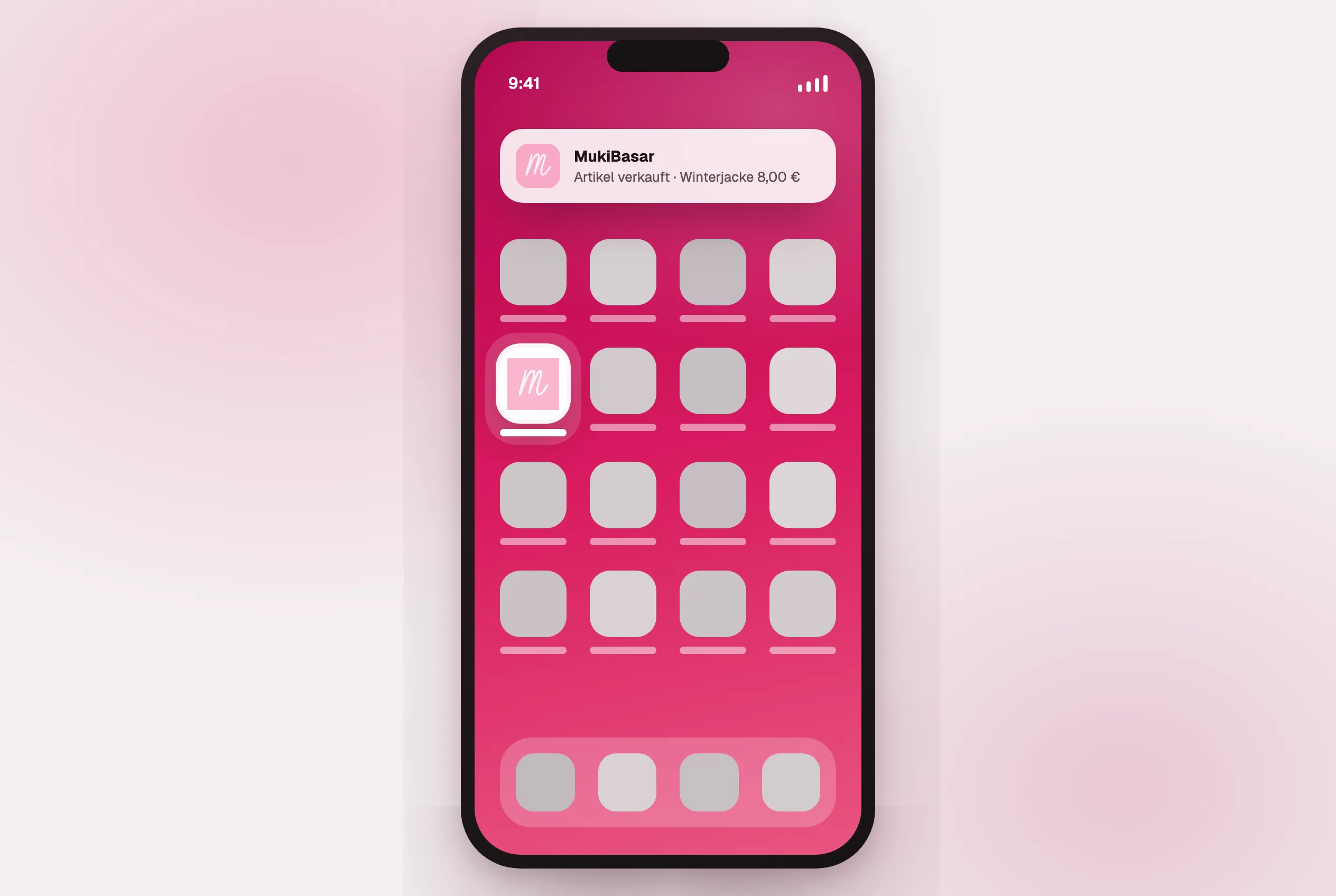
You hear about it when something happens. Your phone lets you know as soon as one of your articles sells at the till, and when the organizing team messages you. In other words, exactly the two moments you’d want a bazaar app on your phone for.
With MukiBasar: After installing, the app asks you once whether it may send you notifications. You can change that any time in your profile under Settings. To see what else reaches you by email, have a look at Emails from MukiBasar.
The same app everywhere – laptop included. Till, reports, settlement: a lot of that is nicer to do at a computer in the evening than on your phone on the go. The direct installation works the same way on every device – iPhone, Android phone, Windows PC or MacBook.
Nothing you have to update. Improvements are simply there the next time you open it. No update queue, and no “this version is no longer supported” two weeks before the bazaar.
How to install MukiBasar
It all starts in the same place: open app.mukibasar.de in your browser and sign in. What happens next depends on your device, so just jump to the section that fits.
Two notes before you start, so you don’t spend time searching. The menu entries are named slightly differently depending on your phone, browser and system version – “Add to Home Screen”, “Add to home screen” and “Install app” all mean the same thing. And don’t worry: reading this takes considerably longer than actually doing it.
iPhone and iPad
- Open app.mukibasar.de in Safari.
- Tap the share icon at the bottom – the square with the arrow pointing up.
- Scroll down the list to “Add to Home Screen” and tap it.
- Confirm the name, tap Add – and you’re done! The icon is now on your home screen.
For this one step, do use Safari if you can. Chrome and Firefox can manage it on the iPhone these days too, but going through Safari works equally reliably on every device.
Android
- Open app.mukibasar.de in Chrome.
- Chrome often offers to install it all by itself – in that case, a tap on Install is all you need.
- If no offer appears, that’s no problem: open the menu using the three dots in the top right and choose “Install app”. On some devices the entry is called “Add to Home screen”.
- Confirm – and the icon is already sitting with your other apps.
Laptop and computer
- Chrome and Edge: a small install icon (a screen with an arrow) appears at the right of the address bar. Click it and confirm with Install. MukiBasar then gets its own window without an address bar, plus an entry in your start menu or dock.
- Safari on the Mac: choose File → Add to Dock.
For bazaar day, this is the version I particularly recommend to organizing teams: its own window, no tabs beside it, and nothing you can close by accident.
Other browsers
Samsung Internet and Firefox for Android handle the installation as well, usually through the menu with an entry like “Add page to” or “Install”. Firefox on the desktop unfortunately can’t – so there you don’t need to go looking for a button at all. MukiBasar still works completely in Firefox, though, just as an ordinary page in your browser.
If you’d rather see all of this with screenshots, it’s in the guide Installing the app.
The manufacturers’ official instructions: Apple – Add a website to your Home Screen (opens in a new tab) and Google – Install and manage Progressive Web Apps in Chrome (opens in a new tab).
A few other things worth knowing
Three small things that, in our experience, everyone trips over once. If you know about them, they won’t catch you out.
You’ll need to sign in once more. To your phone, the installed app is its own separate area, which is why it doesn’t carry over the session from your browser. That’s completely normal and not a fault.
One important note here: to sign in, we send you a six-digit code by email. Type that code into the app. If you tap the link in the email instead, your browser opens – and you end up signed in there, not in the app you just installed.
Remember the address. If you ever delete the icon from your home screen by accident, the way back is always the same: open app.mukibasar.de in your browser and install it again. Your data lives in your account rather than on your phone, so nothing gets lost along the way.
You allow notifications from inside the installed app. On the iPhone that only works there, not in a Safari tab. The app asks you about it by itself – and if you happened to tap past it too quickly, you’ll find the switch any time in your profile under Settings.
Prefer the store?
That’s fine too – MukiBasar is available there as well, and it will stay that way.
- Apple App Store: MukiBasar for iPhone and iPad (opens in a new tab)
- Google Play Store: MukiBasar for Android (opens in a new tab)
The feature set is identical: creating articles, printing labels, the till, reports – it’s all there. There is currently exactly one limitation, and it only affects Apple devices:
The iPhone app from the App Store can’t currently send you notifications. That comes down to the technology behind it – but we’re working on changing it. So if you’d like to know the moment something of yours sells today, you’ll want the directly installed app on Apple devices. On Android, you get notifications either way.
There’s no store app for laptops, by the way – so there the direct installation is the only route to a window of its own anyway.
And if you end up with both versions installed, feel free to delete one of them. Otherwise you’ll have two near-identical icons on your home screen and you’ll wonder which is the right one every single time. Your articles, your registrations and your sales hang on your account rather than on the icon – once you sign in, you’ll see exactly the same thing either way.
”Is it actually safe if it doesn’t come from a store?”
That’s a fair question, and one we get fairly often. The short answer: you’re not installing anything you aren’t already using.
No program is loaded onto your device that could go off and do something on its own. What you get is an icon that opens an address you already know – secured over the same encrypted connection as any banking site, and with the same permissions as any other website.
Nothing about what happens to your data changes as a result. It’s all unchanged in our privacy policy.
Frequently asked questions
Do I have to download MukiBasar from the App Store?
No. Installing directly from the browser gives you the same features, updates itself, and on iPhone is the only variant that can send notifications. The store apps remain available all the same.
Why don’t I get notifications on my iPhone?
The iPhone app from the App Store currently can’t send notifications. Install MukiBasar via Safari instead (Share → Add to Home Screen) and allow notifications from within the installed app – not from the Safari tab.
Is installing without an app store safe?
Yes. No program is downloaded that could do anything on its own on your device. The icon opens the address you already use – over the same encrypted connection as in the browser and with the same permissions as any other website.
In short
- Installing: open app.mukibasar.de, then Share → Add to Home Screen (iPhone), Menu → Install app (Android), or click the icon in the address bar (computer).
- Then sign in once – type the code, don’t tap the link.
- You get your own icon, your own window, and a message as soon as something sells or someone writes to you.
- The stores work just as well – except the iPhone app from there can’t send you notifications just yet.
If you’re at it anyway: this is nicest to try out with a real date in mind. Our bazaar overview lists bazaars near you along with their registration periods.
And if something does go wrong while installing, just write to us. These instructions are meant to work on every device – and if they don’t work on yours, I’d genuinely like to know.
By the way, if you’re technically curious: the mechanism described here is called a Progressive Web App (PWA). You don’t need to know the term – you can install one all the same.